> ## Documentation Index
> Fetch the complete documentation index at: https://docs.twin.so/llms.txt
> Use this file to discover all available pages before exploring further.
# Quickstart
> Build your first three Twin agents and experience the full platform
This guide walks you through **three hands-on tasks** that cover the core Twin experience: scheduled agents, event-driven triggers, OAuth integrations, and browser automation. By the end you'll have built three working agents — all without writing code.
Sign up and get 1,000 free credits — no credit card required
***
## Task 1: Scheduled Email Categorizer
Your first agent will run **every day at 9 AM**, scan your Gmail inbox, categorize emails into a Google Sheet, and send you a Slack message when it's done.
This task introduces you to:
Creating your first agent from scratch
Automating tasks on a recurring basis
Seamlessly connecting Gmail, Sheets, and Slack
### Step 1 — Open a new Workspace
Go to [Twin](https://builder.twin.so/) and create a new [Workspace](/workspaces). A workspace is where your agents live — think of it as a project folder where agents collaborate and share context. Every agent must live inside a workspace.
### Step 2 — Chat with the Orchestrator
On the left side of your screen you'll see the [Orchestrator](/orchestrator) — the AI chat that manages your workspace. This is where you describe what you want to build.
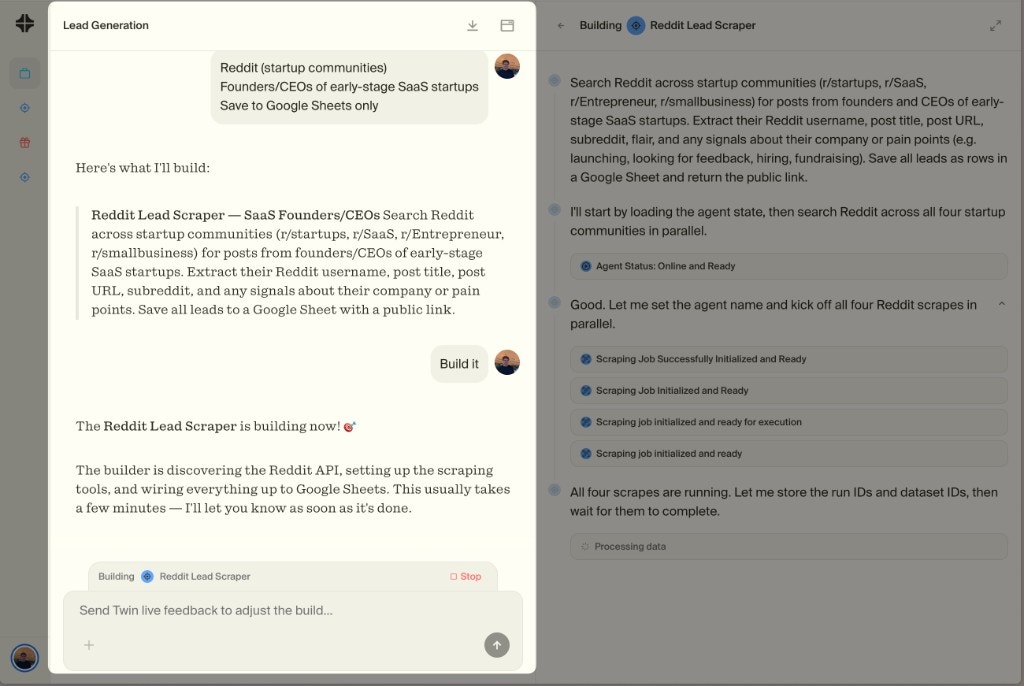 ### Step 3 — Give the Orchestrator your goal
Paste this prompt (or adapt it to your needs):
"Every day at 9 AM, look into my Gmail inbox, categorize each new email by type (newsletter, client, internal, billing, other) into a Google Sheet, and send me a Slack message when finished with a summary of what was categorized."
The Orchestrator will start a **build** — this is [Build mode](/build-vs-run), where Twin uses high-reasoning AI to interpret your goal, plan the steps, and set up integrations.
### Step 4 — Connect your accounts
During the build, Twin will ask you to connect Gmail, Google Sheets, and Slack via **OAuth**. This is a one-click authorization — no API keys to manage, no tokens to copy. Twin handles the permissions securely.
OAuth integrations are workspace-scoped. Once you connect an account, all agents in the workspace can use it.
### Step 5 — Review, test, and deploy
Twin will show you the execution plan and run a test. Review the results:
* Are emails categorized correctly?
* Is the Sheet formatted how you want?
* Did the Slack message arrive?
Refine in the chat if needed, then **deploy**. Your agent is now scheduled and will run every morning at 9 AM in [Run mode](/build-vs-run) - typically **3-10x cheaper** than the build that created it.
This is just one type of [trigger](/triggers). Twin also supports event-based triggers, webhooks, and programmatic triggers via the [REST API](/rest-api).
***
## Task 2: Event-Driven Email Responder
Your second agent reacts to **real-time events** — every time you receive a new email, it analyzes the content and sends you a suggested response via Telegram.
This task introduces you to:
Triggering agents based on external events
The agent builds the webhook infrastructure for you
### Step 1 — Create a new agent in your Workspace
In the same workspace, tell the Orchestrator:
"Every time I receive a new email in Gmail, analyze it with AI and send me a suggested response via Telegram."
### Step 2 — Understand what's happening
This is fundamentally different from Task 1. Instead of running on a schedule, this agent is triggered by an **external event** — a new email arriving. Twin will automatically set up a [custom webhook](/triggers#custom-webhooks) that listens for incoming emails and fires the agent.
**You don't have to manage anything.** The agent builds the webhook infrastructure on the fly — no servers to configure, no endpoints to deploy, no polling logic to write.
### Step 3 — Connect Telegram
Twin will ask you to connect your Telegram account. Follow the prompts — this is the same smooth OAuth flow you experienced in Task 1.
### Step 4 — Test it live
Send yourself a test email and watch the agent react in real time. Within moments you should receive a Telegram message with a suggested response.
Refine the tone, length, or format in the chat if needed, then deploy.
Event-driven agents are perfect for workflows that need to react immediately — like support triage, lead notifications, or alert escalation. See [Triggers](/triggers) for all the event sources Twin supports.
***
## Task 3: Browser Automation
Your third agent uses Twin's [Web Agent](/web-agent) to interact with a real website — filling out a form just like a human would.
This task introduces you to:
Autonomous browser automation in an isolated cloud computer
You can watch, intervene, and take control at any time
### Step 1 — Create a new agent
Tell the Orchestrator:
"Go to [https://httpbin.org/forms/post](https://httpbin.org/forms/post) and fill out the form with sample data, then submit it."
### Step 2 — Approve the browser task
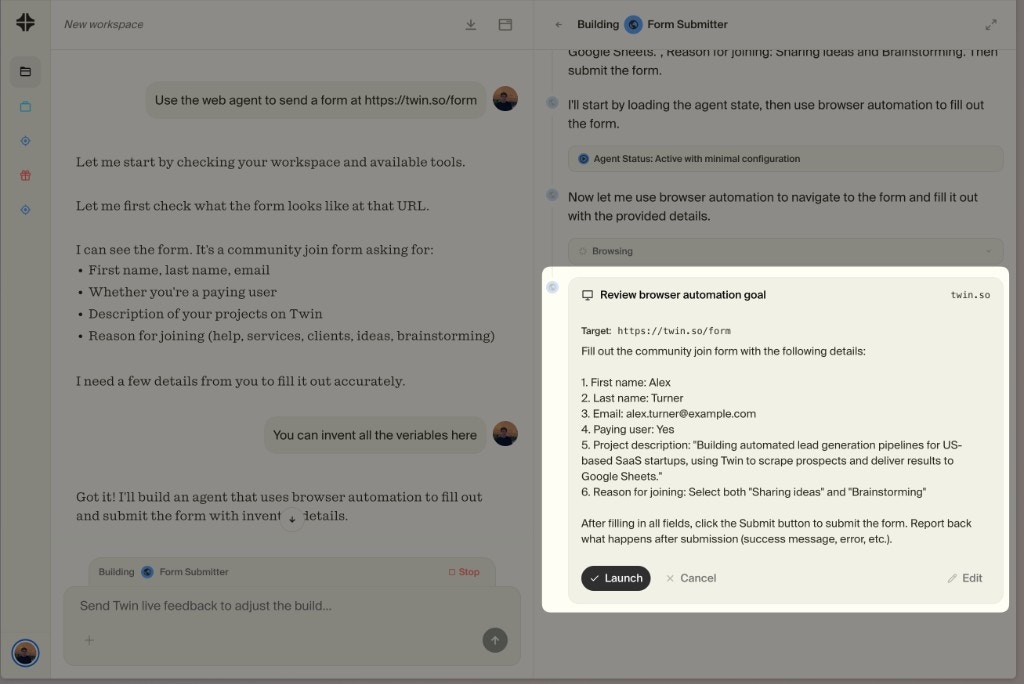
Because browser automation is the most credit-intensive operation, Twin will ask for your permission before launching. You'll see a preview of what the agent plans to do and can approve or edit the plan.
### Step 3 — Give the Orchestrator your goal
Paste this prompt (or adapt it to your needs):
"Every day at 9 AM, look into my Gmail inbox, categorize each new email by type (newsletter, client, internal, billing, other) into a Google Sheet, and send me a Slack message when finished with a summary of what was categorized."
The Orchestrator will start a **build** — this is [Build mode](/build-vs-run), where Twin uses high-reasoning AI to interpret your goal, plan the steps, and set up integrations.
### Step 4 — Connect your accounts
During the build, Twin will ask you to connect Gmail, Google Sheets, and Slack via **OAuth**. This is a one-click authorization — no API keys to manage, no tokens to copy. Twin handles the permissions securely.
OAuth integrations are workspace-scoped. Once you connect an account, all agents in the workspace can use it.
### Step 5 — Review, test, and deploy
Twin will show you the execution plan and run a test. Review the results:
* Are emails categorized correctly?
* Is the Sheet formatted how you want?
* Did the Slack message arrive?
Refine in the chat if needed, then **deploy**. Your agent is now scheduled and will run every morning at 9 AM in [Run mode](/build-vs-run) - typically **3-10x cheaper** than the build that created it.
This is just one type of [trigger](/triggers). Twin also supports event-based triggers, webhooks, and programmatic triggers via the [REST API](/rest-api).
***
## Task 2: Event-Driven Email Responder
Your second agent reacts to **real-time events** — every time you receive a new email, it analyzes the content and sends you a suggested response via Telegram.
This task introduces you to:
Triggering agents based on external events
The agent builds the webhook infrastructure for you
### Step 1 — Create a new agent in your Workspace
In the same workspace, tell the Orchestrator:
"Every time I receive a new email in Gmail, analyze it with AI and send me a suggested response via Telegram."
### Step 2 — Understand what's happening
This is fundamentally different from Task 1. Instead of running on a schedule, this agent is triggered by an **external event** — a new email arriving. Twin will automatically set up a [custom webhook](/triggers#custom-webhooks) that listens for incoming emails and fires the agent.
**You don't have to manage anything.** The agent builds the webhook infrastructure on the fly — no servers to configure, no endpoints to deploy, no polling logic to write.
### Step 3 — Connect Telegram
Twin will ask you to connect your Telegram account. Follow the prompts — this is the same smooth OAuth flow you experienced in Task 1.
### Step 4 — Test it live
Send yourself a test email and watch the agent react in real time. Within moments you should receive a Telegram message with a suggested response.
Refine the tone, length, or format in the chat if needed, then deploy.
Event-driven agents are perfect for workflows that need to react immediately — like support triage, lead notifications, or alert escalation. See [Triggers](/triggers) for all the event sources Twin supports.
***
## Task 3: Browser Automation
Your third agent uses Twin's [Web Agent](/web-agent) to interact with a real website — filling out a form just like a human would.
This task introduces you to:
Autonomous browser automation in an isolated cloud computer
You can watch, intervene, and take control at any time
### Step 1 — Create a new agent
Tell the Orchestrator:
"Go to [https://httpbin.org/forms/post](https://httpbin.org/forms/post) and fill out the form with sample data, then submit it."
### Step 2 — Approve the browser task
Because browser automation is the most credit-intensive operation, Twin will ask for your permission before launching. You'll see a preview of what the agent plans to do and can approve or edit the plan.
 ### Step 3 — Watch the agent work
An embedded browser window opens inside Twin. This is **not your local browser** — it's an isolated cloud computer dedicated to your agent. You can watch every click, scroll, and keystroke in real time.
### Step 3 — Watch the agent work
An embedded browser window opens inside Twin. This is **not your local browser** — it's an isolated cloud computer dedicated to your agent. You can watch every click, scroll, and keystroke in real time.
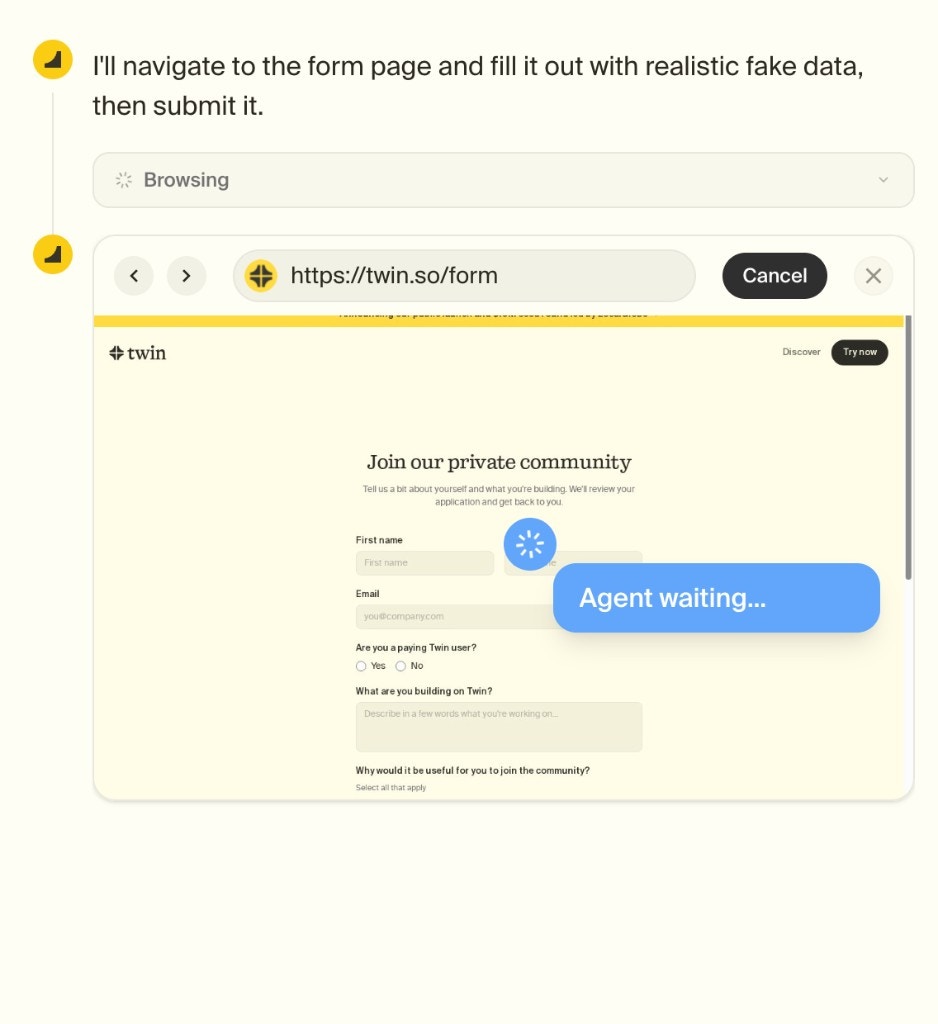 You can **cancel at any time** if something goes off track.
### Step 4 — Understand when the Web Agent activates
The Web Agent isn't something you manually choose — the agent decides automatically. It will always prefer APIs and built-in tools (they're faster and cheaper). It only falls back to the browser when an API isn't available or doesn't support the required action.
Some agents mix API and browser automation. For example, an Airtable agent might use the API for most operations but launch the browser for "Create Base" because that specific scope isn't available via the API. See [Web Agent](/web-agent) for details and [Tips and Tricks](/tips-tricks) for optimization.
***
## What You've Built
Runs every morning, categorizes emails, notifies via Slack
Reacts to incoming emails in real time via webhook
Fills out web forms autonomously in a cloud browser
In three tasks you've experienced the full Twin platform:
* **[Workspaces](/workspaces)** — where agents live and collaborate
* **[Orchestrator](/orchestrator)** — the chat that builds and manages your agents
* **[Build vs Run](/build-vs-run)** - creating agents (more expensive) vs executing them (typically 3-10x cheaper)
* **[Triggers](/triggers)** — schedules, webhooks, and event-driven automation
* **[OAuth integrations](/tips-tricks)** — one-click account connections
* **[Web Agent](/web-agent)** — browser automation when APIs aren't enough
***
## What's Next?
Optimize your agents for cost, reliability, and quality
Create a full app or website powered by your agents
Trigger agents programmatically from your own backend
Understand credits, plans, and how to stay cost-efficient
You can **cancel at any time** if something goes off track.
### Step 4 — Understand when the Web Agent activates
The Web Agent isn't something you manually choose — the agent decides automatically. It will always prefer APIs and built-in tools (they're faster and cheaper). It only falls back to the browser when an API isn't available or doesn't support the required action.
Some agents mix API and browser automation. For example, an Airtable agent might use the API for most operations but launch the browser for "Create Base" because that specific scope isn't available via the API. See [Web Agent](/web-agent) for details and [Tips and Tricks](/tips-tricks) for optimization.
***
## What You've Built
Runs every morning, categorizes emails, notifies via Slack
Reacts to incoming emails in real time via webhook
Fills out web forms autonomously in a cloud browser
In three tasks you've experienced the full Twin platform:
* **[Workspaces](/workspaces)** — where agents live and collaborate
* **[Orchestrator](/orchestrator)** — the chat that builds and manages your agents
* **[Build vs Run](/build-vs-run)** - creating agents (more expensive) vs executing them (typically 3-10x cheaper)
* **[Triggers](/triggers)** — schedules, webhooks, and event-driven automation
* **[OAuth integrations](/tips-tricks)** — one-click account connections
* **[Web Agent](/web-agent)** — browser automation when APIs aren't enough
***
## What's Next?
Optimize your agents for cost, reliability, and quality
Create a full app or website powered by your agents
Trigger agents programmatically from your own backend
Understand credits, plans, and how to stay cost-efficient